🚀 SketchUp to Render
Turn SketchUp Screenshots into Photorealistic AI Renders
Upload a SketchUp viewport screenshot and transform it into a realistic architectural render with AI. Perfect for architects, interior designers, students, and studios who need fast visual concepts without setting up complex render engines.
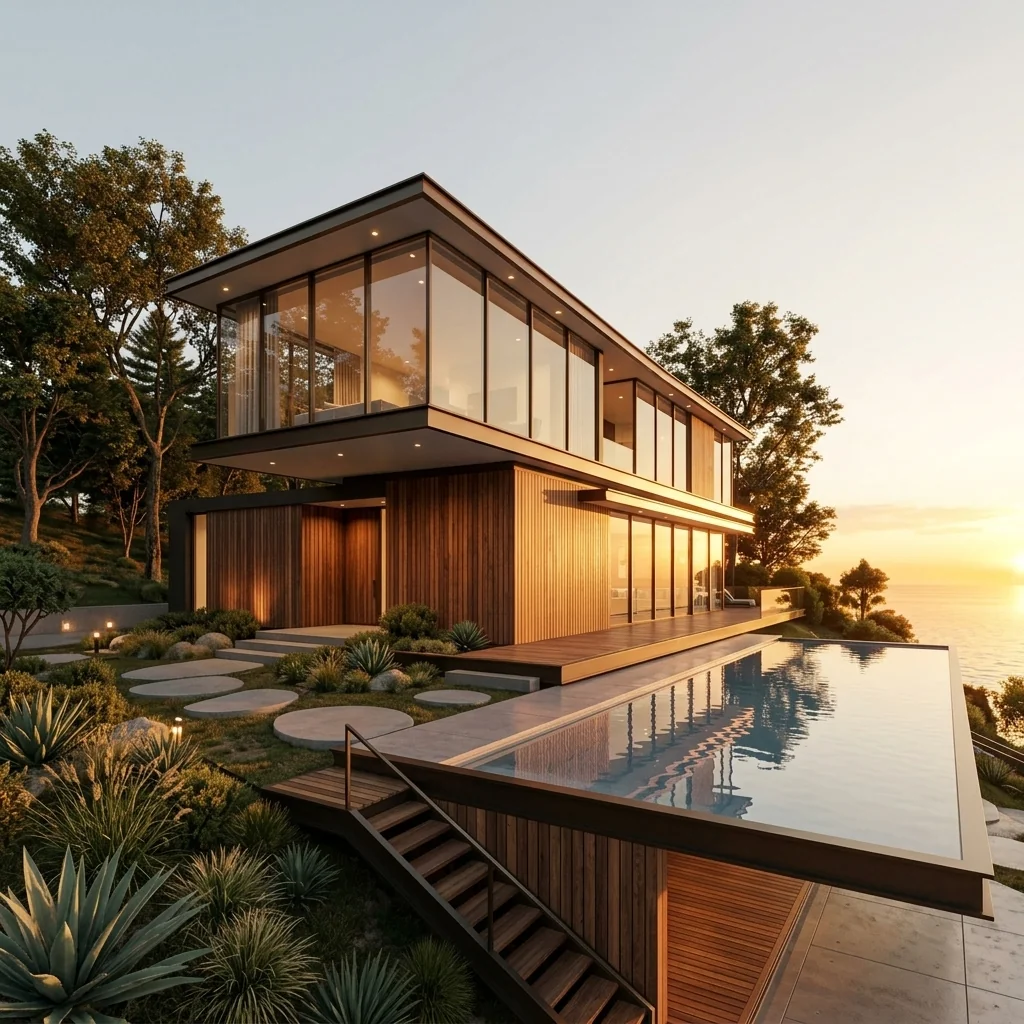
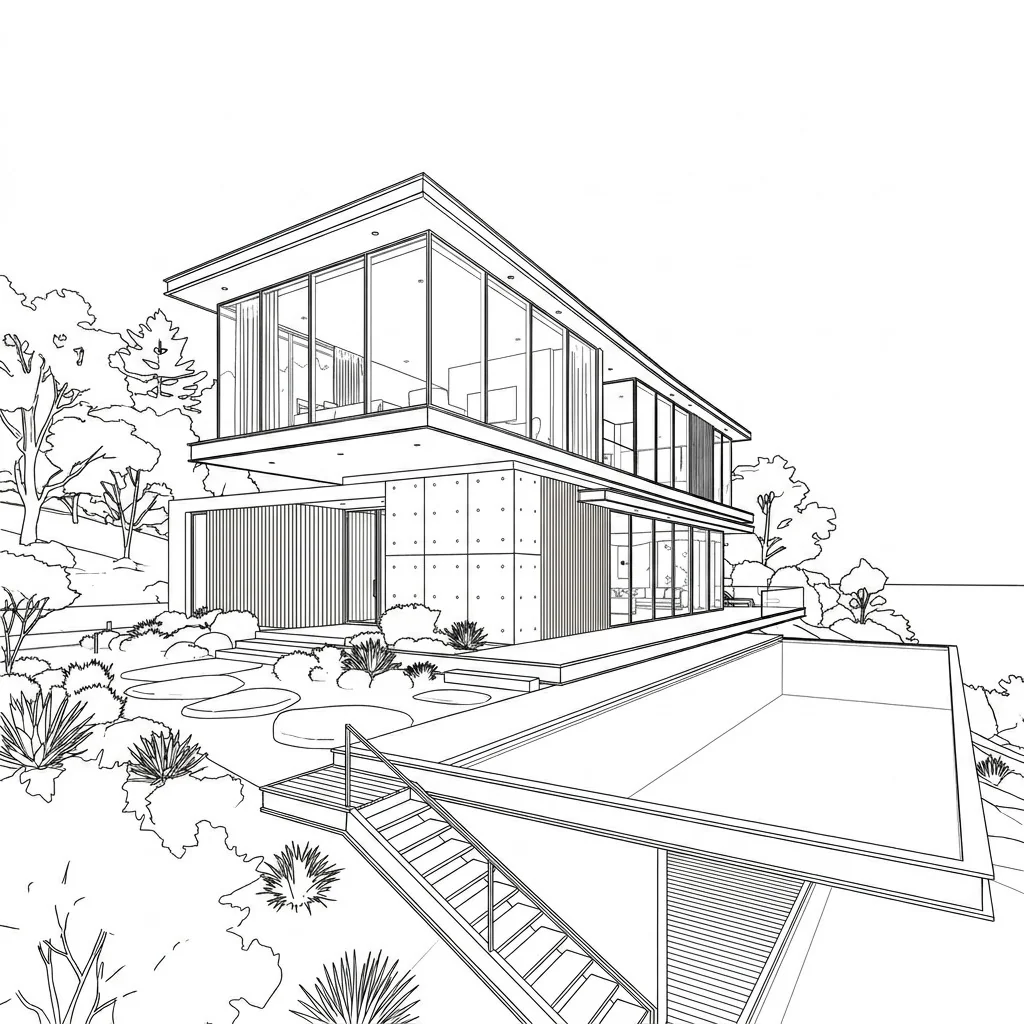
Rendering SketchUp Models Should Not Slow Down Your Design Process
Traditional rendering from SketchUp can require setting up PBR materials, complex HDRI lighting, expensive plugins, heavy render engines, and excruciatingly long render times. Kanvas Projekt helps users bypass this technical bottleneck and create fast concept renders directly from basic screenshots.
From SketchUp Viewport to Realistic Render
4 simple steps to upgrade your 3D model.
Open Your SketchUp Model
Launch your model and apply basic colors if you prefer.
Choose a Clean Camera Angle
Set up a nice perspective view of your building or interior space.
Export or Screenshot the Viewport
Just hit print screen or export a 2D graphic. No need to export heavy 3D files.
Upload & Add Prompt
Upload to Kanvas Projekt, write a text prompt describing the materials and vibe, and generate your render.
Tips for Better SketchUp AI Renders
Use a Clear Angle
Ensure the perspective is easily understandable by the AI.
Keep Main Object Visible
Don't hide your building behind huge trees in the foreground.
Avoid Dark Screenshots
Make sure the SketchUp shadows are not overly black and obscuring geometry.
Use Perspective View
Orthographic views work, but perspective views generally look much more realistic.
Add Simple Materials
Color-coding elements (e.g., blue for glass, brown for wood) helps the AI massively.
Descriptive Prompts
Always describe the time of day, weather, and specific material finishes.
What You Can Create from SketchUp
Exterior house renders
Villa concepts
Interior room visualization
Facade studies
Landscape concepts
Client presentation images
Early design exploration
Student portfolio visuals
SketchUp Screenshot Before. AI Render After.
Why Use Kanvas Projekt for SketchUp AI Rendering?
No complex render setup
Works directly from screenshots
Fast visual exploration
Multiple style directions
Interior and exterior support
Upscale final images to 4K
Useful for quick client revisions
Built specifically for architecture workflows
Frequently Asked Questions
Can I use a SketchUp screenshot?
Yes, any image format including screenshots work perfectly.
Do I need to upload a SketchUp file?
No, we only need the 2D image export or screenshot of your view.
Does it work for interiors and exteriors?
Yes, the AI is optimized for both interior and exterior visualizations.
What type of SketchUp view works best?
Perspective view with clear geometry visibility.
Can I use the render for client presentations?
Yes, with our upscale features you get high-res images perfect for clients.
Is this a replacement for traditional rendering?
It heavily augments it, specially during concept and design phases.
Can I generate multiple design variations?
Yes, you can tweak your prompt to see different materials instantly.
Can I upscale the final render?
Yes, we offer an AI upscaler for stunning high-resolution output.